








 Web Trader MT5






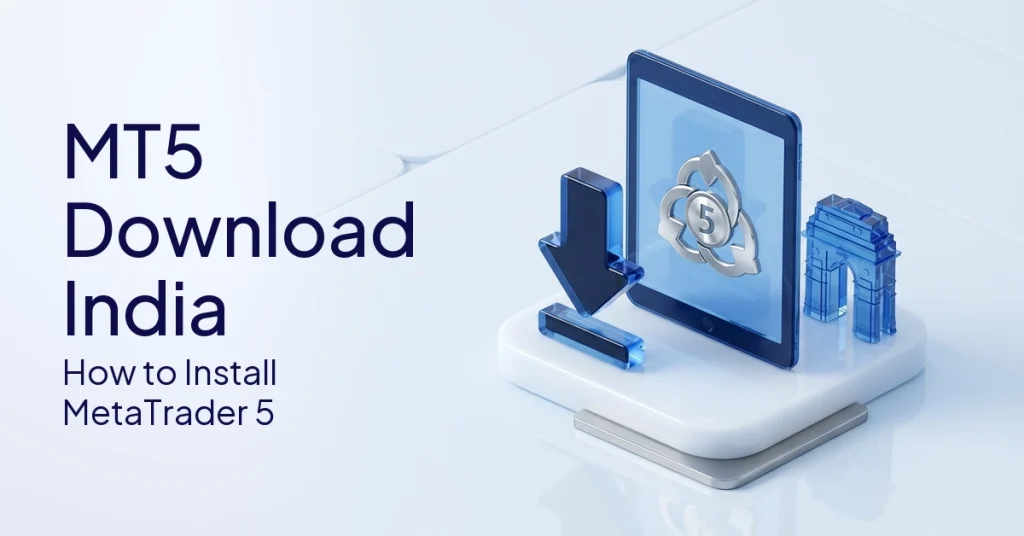
Downloading the trading software is a very simple process and it is completely free which provides traders with direct access to global financial markets on almost any device.
Ever wondered why it takes less than 5 minutes to setup a platform, but so many beginners struggle?
Many traders in India are looking for how to download MT5 in India as they need a reliable and robust platform for forex or CFD trading. But new users often don’t know if the software is paid or where to download a safe installation file.
This guide will assist you step by step to set up your platform safely on any device. You will learn how to safely complete an MT5 download, either on desktop or mobile.
We’ll walk you through the setup process for PC, Android, Mac and some basic troubleshooting steps. When you’re done with this guide, you’ll be ready to log into your broker account and start browsing the markets.
What Is MT5 And Is It Free To Download?
MT5 is a free software platform that allows you to analyze markets and execute trades, but you need a separate account with a broker to be able to actually trade.
What MT5 Is Used For
This software is your main working platform, where you can view charts, place orders and manage your trading account. MT5, or MetaTrader 5, is a gateway for retail traders to access the world’s financial markets.
It enables traders to follow live price feeds, place market orders, and apply MT5 indicators to spot possible market trends. The official MetaTrader 5 documentation states that the platform can handle multiple asset classes concurrently.
What MT5 Is Not
The platform is only a gateway to the markets. It is not a machine to automatically generate wealth. The MT5 is not an investment product, a signal service or a guarantee of profitable trading results. It is only a neutral software interface that connects you to your broker’s trading server. You are solely responsible for any trading decisions made in the interface.
Is MT5 Free?
The platform is free to install and there are no hidden software subscriptions. Standard desktop or mobile app install is free up front. But normal trading fees will still apply through your chosen broker.
These costs are usually in the form of spreads, commissions, overnight swaps or other account administration fees.
Why A Broker Account Is Needed
The software is free but if you want to see live prices and place trades, you need valid broker credentials. The program can be installed by anyone but you need to have a broker’s account login to activate the live trading features.
If you’re a beginner, you can practice on a demo account before you ever risk real funds. This way, you will learn the interface mechanics in a totally risk-free environment.
MT5 Download For PC: How To Install On Windows
Windows users can easily get the platform by opening the official setup file and following the simple installation prompts.
System Requirements
You need a basic memory and a stable internet connection on your computer for the software to run smoothly.
You don’t need a high-end gaming computer to view charts or make trades. But meeting the minimum requirements ensures your price feeds don’t lag.
- Windows laptop or desktop with a modern operating system (Windows 10 or Windows 11 recommended for security)
- Reliable broadband internet access for live price updates.
- Loads of hard drive storage for the installer and historical chart data.
- Plenty of RAM to run multiple charts, indicators and background programs without freezing.
Step-By-Step Installation On Windows
Just download one file to install the software and run the installation wizard to finish the installation. Follow these steps carefully to make sure the installation is secure and done correctly.
- Visit the official MetaQuotes page or your broker’s official platform page.
- Select the Windows download link as displayed on the page.
- Download the setup file directly to your computer’s downloads folder.
- Run the .exe installer file that you downloaded.
- Read the license agreement and follow the prompts on the screen to install.
- Only allow the installation if you can confirm the file came from a trusted, official source.
- Launch the new program through your desktop shortcut.
- Click on your particular broker server from the list.
- Log in using demo or live account details.
Safety Note For Windows Downloads
Always verify where you are downloading your installer from. You don’t want malicious software. Do not visit random download sites that promise custom features and have not been verified.
The cybersecurity report from Cloudflare states that malicious software downloads are still a major threat to retail users around the world. When installing it, you might get some prompts from your antivirus, especially when opening a new .exe file, this is normal.
Make sure the source of the file is legitimate before allowing your computer to proceed with the installation.
Mini-Checklist
This quick reference guide helps you complete every step of the Windows setup correctly.
| Step | Action | What To Check |
| 1 | Download Installer | Use only the official or broker-provided source link. |
| 2 | Open File | Confirm it is the correct setup file before double-clicking. |
| 3 | Install Platform | Follow the on-screen screen prompts step-by-step. |
| 4 | Launch Software | Open the program from your desktop or start menu. |
| 5 | Log In | Use the correct server name and your account details. |
Let’s imagine an Indian retail trader who is setting up their home office for the first time. They download the setup file but their aggressive anti-virus software flags it as unrecognized.
They check the file is directly from their official broker’s website, proceed to bypass the false alarm with confidence and complete the setup in minutes.
How To Download MT5 On Android
Android users can download the platform directly from the Google Play Store and can immediately open an account with their broker details.
Installing the MT5 mobile app on Android is simple since you can get it directly from the official app store.
With Android being the leading mobile platform in the world as per the data from Statista, this app is a must-have for the majority of retail users. No need to sideload external files, or resort to complicated workarounds.
Step-By-Step Installation On Android
And installing the mobile application is simply a matter of searching the Play Store and your broker credentials.
- Open the Google Play Store on your Android phone or tablet.
- In the upper search bar, type “MetaTrader 5”.
- Ensure that the application is an official product by MetaQuotes publishing.
- Select the Install button and wait for it to finish.
- Open the app, tap “Get Started” and search for your broker’s server name.
- Login using the supplied demo or live account details.
Android Requirements
Your mobile device needs a supported version of the operating system and a stable mobile data connection. The app will run fine on most modern smartphones purchased in the last five years.
Make sure to update the operating system on your device to receive the latest security patches. Don’t use insecure public Wi-Fi networks for login information.
What Android Users Can Do On MT5
The mobile app offers full account management plus the charting tools you need to stay on the go. It has been scaled down for smaller screens but retains all the key functions required for daily market interaction.
- View live price charts in various time frames.
- Add technical indicators to analyze on the go.
- Keep an eye on all open trades and pending orders.
- Enter new market orders or close existing positions.
- Check your balance, margin levels and trade history.
If you require further assistance with this specific interface, check out our full guide on how to use the MT5 app.
Note on Android Restriction
Mobile screens restrict your field of view so complex technical analysis is far easier on your monitor at the desk. It can be frustrating trying to draw accurate trend lines or looking at multiple charts side by side on a phone.
The mobile app is very handy for position tracking, quick access to accounts and basic order management on the go. Serious technical analysis is usually better suited to the desktop environment.
How To Download MT5 On Mac
Mac users can use the platform via official dedicated Mac installers, broker guidelines, or browser-based web terminals.
Mac Installation Options
Apple computer users have several practical ways to access the platform without a Windows computer. In the past, the software was designed solely for Windows, but current solutions make Mac access seamless.
- Use the official Mac download option if available directly from the developer.
- Follow the Mac installation instructions for your particular broker, which usually includes a pre-packaged compatibility file.
- If you prefer not to install any desktop software, use a broker-supported web terminal.
Step-By-Step Mac Installation
In the case of MacOS, you open the package file and then drag the application to your folder of choice.
- Go to your broker’s platform page or the official developer download page.
- If there is a dedicated Mac download option, choose that.
- Download the Apple installer on your device.
- Run the installer and follow the usual Apple setup prompts.
- When the installation is finished, open the application using your Launchpad.
- Select the correct broker server from the drop-down list.
- Log in using your demo or live account details.
Web Terminal Option
For Mac users, a web terminal is a great option to trade directly from their internet browser. This option doesn’t require any software to be installed and works entirely in Safari, Chrome or Firefox.
It is very useful for Mac users whose particular device setup does not allow the desktop version. Note that web terminals may not have as many sophisticated charting capabilities as the full desktop program.
Note: Always follow the platform’s official instructions and your broker’s guidance for updates on Apple compatibility. Apple does update their operating system frequently, and sometimes older software installs can get disrupted. Do not use compatibility tools downloaded from unknown sources, use the official technical support of your broker.
MT5 Download Troubleshooting
Most installation problems are caused by slow internet connections, overly aggressive antivirus software, or wrong login credentials.
If you run into problems during setup, don’t panic. Here is a convenient checklist to help you resolve the most common beginner problems quickly:
- Slow Download: Try the official source, pause other background downloads and check your Wi-Fi or mobile data connection.
- Antivirus Blocks Installation: Check the file’s origin. If it’s from an official source, allow the installer through your system’s security prompts.
- Login Error After Install: Check your account number, password (passwords are case sensitive), account type and server name.
- Broker Server Not Found: Search your broker for the exact server name, such as your STARTRADER server details or check your welcome email instructions.
- Android App Crashes: Update the application, reboot your phone, clear the app cache in your settings or uninstall and reinstall the application from the app store.
- Charts Not Loading: Check your internet connection. Check if you are logged into your account in the bottom right corner. Verify that the selected financial market is open.
FAQs
Yes, the software is free to install and use on any supported device. There are no subscription fees for the standard installation of the platform. However, if you begin to make live trades then trading costs associated with brokers such as spreads or commissions may apply. There is always the option of a free demo account to practice before risking live capital.
Indian users just have to login to the official developer site or the platform page of their registered broker. Find the right file version for your device first and then finish the download. Follow the prompts on screen to install the platform. Finally, open the software and login to your broker account with the details provided to you.
Yes, the platform runs smoothly on almost all modern Windows and Mac laptops. Laptops are good for detailed chart analysis, implementation of indicators and elaborate order management. They have a lot more screen space and processing power than mobile devices.
Support for older operating systems depends largely on the software build and your broker’s server needs. Older versions may run technically but do not have modern security updates and stability patches. If possible, we strongly recommend running a supported Windows version today for best performance and account security.
While the internal architecture and capabilities of the two platforms are different, the installation steps are the same. The new version supports more types of markets, has more built-in tools for analysis, and uses a newer coding language. If you are interested in a more detailed comparison of these differences, check out our MT4 vs MT5 comparison article.
Conclusion
All major devices are quick and free to set your platform up with when you stick to trusted, official sources.
The software provides retail traders with live price charts, advanced indicators, order execution windows and basic account management tools. Indian traders should always check and download the correct version of software to their operating system.
Broker Account: Needed to turn on live trading capabilities (new traders should always begin with demo access). This manual will help you avoid common setup mistakes and get you off to a smooth start learning how the markets work.
Start your next educational adventure today. Before you use the platform for live trading, learn more platform guides such as how to use mobile access, technical indicators and account login tools on the MT5 platform.
This content is provided for educational and informational purposes only. It does not constitute investment advice, financial guidance, or a recommendation to trade any financial instrument.
Tags


Open Live Account
 Email Address
 Phone Number
Important Notice
STARTRADER does not accept any applications from Australian residents.
To comply with regulatory requirements, clicking the button will redirect you to the STARTRADER website operated by STARTRADER PRIME GLOBAL PTY LTD (ABN 65 156 005 668), an authorized Australian Financial Services Licence holder (AFSL no. 421210) regulated by the Australian Securities and Investments Commission.
Important Notice for Residents of the United Arab Emirates
In alignment with local regulatory requirements, individuals residing in the United Arab Emirates are requested to proceed via our dedicated regional platform at startrader.ae, which is operated by STARTRADER Global Financial Consultation & Financial Analysis L.L.C.. This entity is licensed by the UAE Capital Market Authority (CMA) under License No. 20200000241, and is authorised to introduce financial services and promote financial products in the UAE.
Please click the "Continue" button below to be redirected.


