








 Web Trader MT5






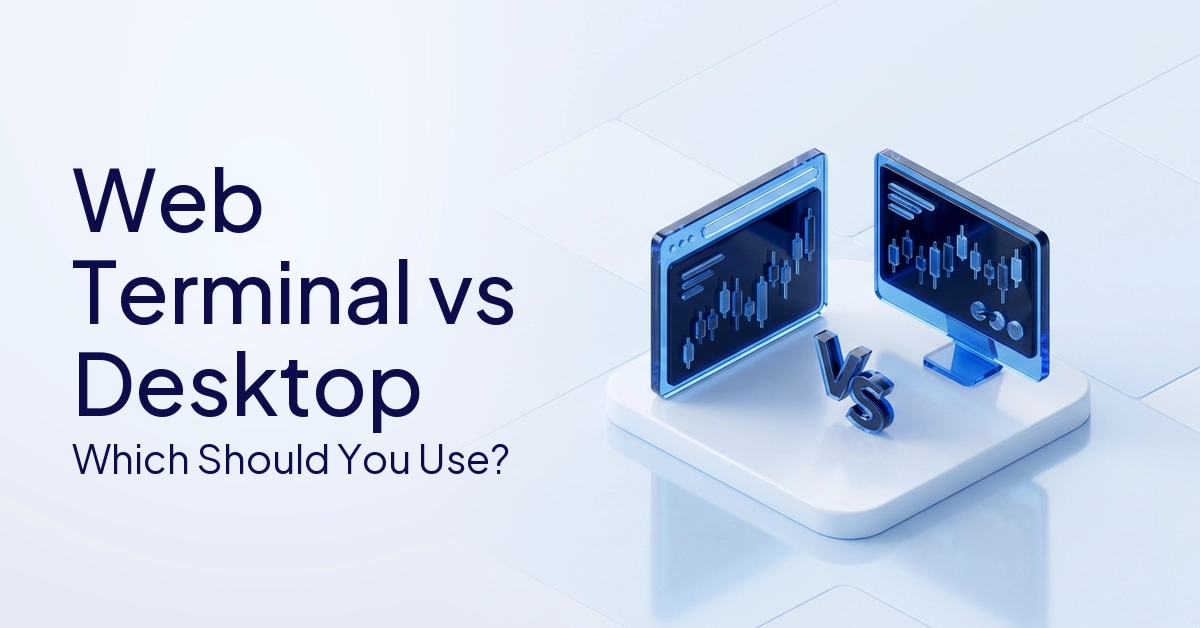
Both versions of MetaTrader 5 allow you to trade the markets, but the browser version is for quick access while the desktop app is for advanced technical workflows.
Did you know that market research from recent times shows a rapid growth in the digital broker platform sector of the world as retail traders want more flexible access to their accounts?
When setting up your workspace, it’s important to know how the MT5 web terminal compares to the desktop version. The web terminal runs 100% in your browser, so there’s nothing to install.
But the desktop MT5 is installed directly on your computer. Both allow you to access standard accounts, charts and place orders.
Desktop MT5 is much better for advanced tools like Expert Advisors, custom indicators, the Strategy Tester and larger workspace layouts. The article reviews their core features, their charting and automation, speed, practical use cases, and how to access them.
Quick Answer
The MT5 web terminal runs in your browser and does not require installation. It provides quick access, standard charts and basic order management. The desktop platform must be installed, but it offers advanced features such as the Strategy Tester, personalized indicators and automated Expert Advisors. Select the web terminal for quick, portable checks or the desktop version for advanced analysis and automated workflows.
What Is The Web Terminal MT5?
The web terminal MT5 is the browser version of the MetaTrader 5 platform. It allows you to access your account without downloading any software.
It is a lightweight platform that runs directly in most modern web browsers like Chrome, Safari or Edge. The web terminal provides users with secure login, live market quotes, price charts, new order placement, open positions management, and account history review. It runs in a browser environment, so you don’t have to install the heavy desktop platform files.
How It Works
Your broker offers a secure webpage for the terminal, and you just access it and log in with your regular account credentials. When the page loads, the interface connects to the broker’s trade servers using HTML5. Your data syncs in real time so you can use the platform almost anywhere with an internet connection seamlessly.
What The Web Terminal Can Do
The browser version includes all the necessary tools for the manual day-to-day market activities. It is light, but the core features are still there. Users can easily do the following:
- See real-time market quotes and pricing
- Open interactive chart for all assets.
- Use standard chart types and basic time frames.
- Place market and pending orders immediately.
- See and edit open job positions.
- View transaction details and balances.
- Use the built-in technical indicators.
- Use the drawing tools and graph objects on charts.
- Get full access to the platform without installing any software.
Expanding Your Platform Knowledge
Knowing the types of trading platforms available will help you select the best environment for your type of trading. If you are new to browser-based access, learning what a web trader is can give you more context on how these cloud-based terminals fit into your overall account ecosystem.
Web Terminal Vs Desktop MT5: Feature Comparison
The web terminal is super convenient for instant access, while the desktop MT5 has the heavy duty analytical tools that advanced technical traders need.
Side-By-Side Feature Table
This comparison table describes the functional differences between the installed software and the browser-based terminal.
| Feature | MT5 Web Terminal | MT5 Desktop |
|---|---|---|
| Installation | No installation needed | Installation required |
| Access | Runs in a browser | Runs as installed software |
| Account Login | Supported with valid account credentials | Supported with valid account credentials |
| Quotes | Available | Available |
| Market Orders | Available | Available |
| Pending Orders | Available | Available |
| Charts | Available | Available with deeper workspace control |
| Timeframes | Available, but fewer than desktop | Wider timeframe selection (21 timeframes) |
| Built-In Indicators | Available | Available |
| Custom Indicators | Limited compared with desktop | Supported |
| Expert Advisors | Not the main workflow | Supported |
| Strategy Tester | Not the main workflow | Supported |
| Multi-Chart Setup | More limited | Stronger multi-chart setup |
| Browser Dependency | Requires browser session | Runs independently as desktop software |
| Use Case | Quick access and no-install trading | Advanced analysis, automation, and testing |
Charting And Analysis
For those who use complex chart layouts and more in-depth technical analysis, the desktop MT5 is a better environment. You can interact with the charts in both versions.
But the desktop version offers up to 21 specific timeframes and you can detach charts across multiple computer monitors. Web Terminal is typically limited to regular timeframes and a single-screen browser layout.
Indicators And Tools
The installed platform provides endless customization while the browser version depends mostly on pre-installed tools. The web terminal has many built-in indicators that are used everywhere, such as Moving Averages, RSI, and MACD.
MT5 desktop, though, is better for custom indicators you download from the market or code yourself. This allows more customization of the platform.
Expert Advisors And Automation
If you need automated trading algorithms that rely on continuous background processing power, desktop software is your only option. The use of Expert Advisors (EAs) for automated trading is mostly a desktop MT5 workflow.
The web terminal is not designed for running EAs, as browser tabs can sleep or close, interrupting algorithmic execution.
Strategy Tester
Backtesting algorithms on historical data is very much a desktop-only feature. The Strategy Tester enables traders to view the past performance of EAs and Custom Indicators.
This feature requires local processing power and historical data downloads, so it is not a typical web terminal workflow.
Speed And Stability
There is no one platform that is always faster; it depends a lot on your local hardware and internet connection. There have been General SEC filings on retail platform growth that have shown cloud-based infrastructure has greatly reduced latency across the board.
The speed depends on your internet connection, browser stability, device memory, the condition of the broker server and the general volatility of the market. Desktop MT5 is generally more stable for heavy, long-session platform use.
When Should You Use The MT5 Web Terminal?
The browser version is perfect for when you need immediate access to your account, but can’t or don’t want to install software on the device you are using.
Real-World Use Cases
Browser access is a great second tool for managing trades on the go. The web terminal may be better for traders who need to:
- Check open trades from a device that does not have MT5 installed.
- Securely log on from a public, office, or temporary computer.
- Use MT5 natively from a browser on Mac, Linux or Chromebook OS.
- No Software installation needed, view price charts quickly.
- Monitor your open positions while traveling or away from your primary computer.
- Use easy order execution and account management tools quickly.
Note: The connection to the market is only active while your web browser is open and connected to the internet. The web terminal is fully tied to the browser session. If you close the browser tab, lose internet connection or your device goes to sleep, browser-based access will cease to update and active management will be suspended.
What The Web Terminal Is Not For
It is not intended to be used as a primary workstation for heavy quantitative analysis or algorithmic trading. If you have in your routine, then don’t rely on the web terminal:
- Constantly running expert advisors
- Installing complicated custom indicators.
- Running Strategy Tester for backtesting.
- Handling multi-chart layout across multiple monitors.
- Heavy automated trading workflows that require 24×7 uptime.
When Should You Use The Desktop Platform?
The desktop software is the primary workstation for traders looking for the maximum technical capability, customisation and automation.
Desktop Use Cases
The installed software takes full advantage of your computer’s processing power to solve demanding analytical tasks. Desktop MT5 is ideal for traders who need:
- Expert Advisors that run all day, every day.
- Custom indicators for specific technical strategies.
- The Strategy Tester for historical backtesting and optimization.
- Advanced chart layouts that save themselves.
- More workspace control across multiple screens.
- Multiple open charts across different instruments and timeframes.
- Deeper technical analysis tools and drawing objects.
- More stable long session platform usage without browser related memory limits.
Why Desktop Is The Full Platform Workflow
It offers the complete, unrestricted MetaTrader environment exactly as the authors intended. Desktop MT5 is the primary home for advanced platform tools. It may take some initial installation time, but it allows you to customize all your chart settings, custom system files, automated workflows and strategy testing data.
Preparing Your Setup
Having the right desktop software means that you have all the analytical features you need. If you find a more suitable installed environment for your strategy, you can check how to download MT5 and set up your main workstation quickly and easily.
How To Access The MT5 Web Terminal
To get started, all you need is your current account login details and a modern internet browser. It’s only a few clicks away.
Step-By-Step Access Guide
Here are a few easy steps to securely load your workspace in your browser:
- Launch a supported, modern web browser (e.g., Chrome, Firefox, or Safari).
- Open the official or STARTRader MT5 web terminal page provided.
- Select a live or demo server from the dropdown list, if necessary.
- Enter your MT5 account number or login id.
- Type your secure password.
- By clicking the login button confirm the connection.
- Please ensure that your market quotes, charts and account details are correctly loaded in the main window.
No Download Required
By skipping the download process , you save space on your hard drive and avoid the administrative hurdle of installation . No desktop installer file is required for the web terminal. It is especially beneficial for users who cannot install software due to administrative device restrictions or for users who require quick, temporary access to their accounts.
Login And Safety Tips
It’s important to use very strict security habits when logging into your financial accounts on regular web browsers. Use only official or trusted web terminal links from your broker.
- Never log into a link sent through email or social media that you don’t recognize.
- Never save passwords in your browser (shared/public computers)
- Always log out from the terminal when using a public device.
- Make sure you have a reliable and secure Wi-Fi or wired internet connection.
- Please make sure that your account number and server details are exactly the same as what you have registered.
FAQs
This is a cloud-based version of the platform, so you can manage your trading account directly from an internet browser. The web version of MetaTrader 5 is the MT5 web terminal. This allows users to securely access charts, quotes, orders, positions and account history without installing the traditional desktop platform.
No, browser environments are not designed to run continuous algorithmic trading scripts. Expert Advisors are mainly used on the desktop version of MT5 The web terminal is better when you use browser access, do manual trading, view charts and check your account quickly.
Yes, no additional software charges when you open the platform in your browser. You don’t need to buy the platform in order to use the web terminal. Live trading does require a supported account and normal trading costs or spreads may apply with your account provider.
It supports basic analytical tools but cannot load custom third party files. Web terminal has built-in technical indicators, but for custom indicator workflows it is not the same as desktop MT5. Custom indicators and advanced technical setups are much easier to apply with the desktop MT5.
Yes, it’s a very convenient workaround for Apple users who want to avoid the emulator software. For Mac users, browser-based access is very useful as it completely avoids the Windows-native desktop platform. Users should still check their specific browser compatibility and that their account access is active.
Conclusion
Ultimately, your choice of the platform version will depend on whether you want speed of access or deep technical capabilities. The MT5 web terminal is very convenient for quick access through a browser. Traders can monitor their accounts without downloading any files.
That makes it a great option for people on shared computers, Macs, or those who need immediate access to open positions. For desktop MT5, however, a more traditional software installation is required, but it is still the better choice for traders who rely on automation, custom tools and backtesting.
The desktop version offers vastly more advanced charting options, full support of Expert Advisors, Strategy Tester and extensive workspace control. All versions include standard charts, real-time quotes, fast orders and secure account access. Ultimately, the best choice will depend on your specific workflow and device setup.
Before you finalize your workspace setup, take some time to assess your trading needs. To help you decide which setup you prefer, read more guides for the MT5 platform about browser access, desktop downloads, Expert Advisors, charts and indicators.
CFDs are complex financial instruments and carry a high risk of losing money rapidly due to leverage. You should ensure you fully understand the risks involved and carefully consider whether you can afford to take the high risk of losing your money before trading.
This content is provided for educational and informational purposes only. It does not constitute investment advice, financial guidance, or a recommendation to trade any financial instrument


